
Control exactly what every role can see and do
TimeMagick uses role-based permissions to decide what each role can see, create, change and delete. The permission matrix covers 40 modules, from timelines and approvals to reports, invoices and project channels, each with View, Create, Update and Delete controls where they apply.
1-month free trial
How the permission model works
Permissions are set per role. For each role, every permission module has up to four actions: View, Create, Update and Delete. With 40 modules, that is a matrix of up to 160 permission controls per role.
1. Role
Choose a role
Owner and CLIENT are locked system roles. Custom roles, such as Project Manager, Engineer, Sales or Contractor, are yours to create and edit.
2. Permission module
Pick a product area
40 modules, from Timeline and Tracked Time to Reports, Export Report, Invoice and Project Channel.
3. Actions
Set what the role can do
View, Create, Update and Delete. Some modules only offer the actions that apply to them.
Actions follow the module
Not every module needs all four actions. In the Role Permission screen, dashboard modules such as Admin Dashboard show a View control only, while modules such as Clients and Projects have View, Create, Update and Delete.
If a role doesn't have access to a screen, TimeMagick redirects to a dedicated no-access page.
The Role Permission screen
Choose a role from the role selector, search the permission list, and switch each action on or off. Changes apply to every member who holds that role.
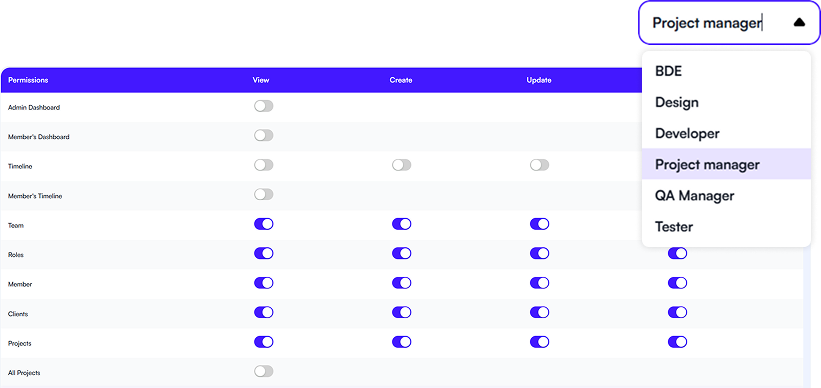
Permissions follow the product, not just Admin and User
Instead of one admin switch, access is split by product capability. A few examples of modules that TimeMagick keeps separate:
Reading reports vs. exporting them
Reports and Export Report are separate modules. Reading a report and extracting it as a formatted Excel file are separate rights.
Projects vs. All Projects
TimeMagick exposes Projects and All Projects as two separate permission modules, next to Projects Overview, Project Task and Custom Project Status.
Project Channel vs. All Project Channels
Project communication has two separate permission modules of its own, so channel access is configured alongside project access.
Lunch: member view vs. admin view
Members claim meal allowances in a monthly calendar; admins review a member-by-day grid for the whole team. The two views are separate permissions.
All 40 permission modules
The full list of modules in the Role Permission matrix, grouped here by area.
Dashboards & activity (6)
- Admin Dashboard
- Member's Dashboard
- Timeline
- Member's Timeline
- KPIs
- Apps & URLs usage
People & access (4)
- Member
- Team
- Roles
- Roles & Permission
Clients & projects (6)
- Clients
- Projects
- All Projects
- Projects Overview
- Project Task
- Custom Project Status
Time & approvals (4)
- Manual Time
- Tracked Time
- Member's TimeSheet
- Personal Timesheet
Expenses (7)
- Company Expenses
- Company Expenses Approval
- Recurring Expenses
- Recurring Expenses Approval
- Recurring Expense Payment History
- Lunch (Member view)
- Lunch (Admin view)
Reports & billing (3)
- Reports
- Export Report
- Invoice
Communication (2)
- Project Channel
- All Project Channels
Settings (8)
- Profile Setting
- Company Setting
- Work Setting
- Project Setting
- Project Folder Setting
- Activity Setting
- Apps & URLs Setting
- Billing Accounts
Members, Teams, Roles and Client Members
TimeMagick's people model lives on one Members screen with four tabs. Permissions are attached to roles, and every member is assigned a role.
Members
Each member has a profile with their team, their role, a flex-hours setting and employee and company tax percentages, and can be activated or deactivated.
Teams
Named groups of members, which you can create, edit and delete.
Roles
Owner and CLIENT are locked system roles. Custom roles can be created, edited and deactivated, and each role has its own permission settings.
Client Members
External users linked to one or more of your clients. They hold the CLIENT role and use their own client-facing workspace.
Why access control matters in a connected system
In TimeMagick, time tracking, projects, billing and profitability work from the same project data. That means one workspace holds very different kinds of information, and not everyone needs all of it.
Role-based permissions let you give each role the parts of that shared system it actually needs, module by module, instead of choosing between full access and none.
What lives in the same workspace
- Tracked time, timelines and timesheets
- Activity %, productivity % and app and URL usage
- Projects, tasks, budgets and the Gantt
- Clients with their hourly rates
- Expenses, approvals and invoices
- KPIs such as client margin and effective rate
- Project channels and messages
Where permissions apply
Project management
Projects board, tasks, budgets and the interactive Gantt that project permissions apply to.
Project communication
Project channels, direct messages and group conversations.
Reports & analytics
Six filterable reports, KPIs and formatted Excel export.
Employee monitoring
Activity, productivity and app and URL usage, without screenshots.
Client portal
Client Member accounts with their own dashboard, projects, timesheets, reports and project channels.
Roles and permissions in TimeMagick: key facts
- TimeMagick uses role-based permissions.
- Permissions are set per role in the Role Permission matrix.
- The Role Permission matrix has 40 permission modules.
- The matrix has four action columns: View, Create, Update and Delete, giving up to 160 permission controls per role.
- Some modules only offer the actions that apply to them; for example, Admin Dashboard has a View control only.
- TimeMagick supports custom roles, which can be edited and deactivated.
- Owner and CLIENT are locked system roles.
- Report export has its own permission module (Export Report), separate from Reports.
- Project Channel and All Project Channels are separate permission modules.
- Projects and All Projects are separate permission modules.
- Lunch (Member view) and Lunch (Admin view) are separate permission modules.
- Client Members are external users linked to one or more clients, with their own CLIENT workspace.
- When a role does not have access to a screen, TimeMagick redirects to a no-access page.
Frequently Asked Questions
Role-based permissions, custom roles, report export and client users in TimeMagick.
Does TimeMagick support role-based permissions?
Yes. Access is set per role in the Role Permission matrix, which covers 40 permission modules with View, Create, Update and Delete controls.
How granular are TimeMagick permissions?
The matrix has 40 permission modules and four actions (View, Create, Update and Delete), which gives up to 160 permission controls per role. Modules follow product areas, such as Reports and Export Report, Projects and All Projects, or Lunch (Member view) and Lunch (Admin view). Some modules only offer the actions that apply to them.
Can I create custom roles?
Yes. Owner and CLIENT are locked system roles. You can create your own roles, edit them and deactivate them. Roles in use include Project Manager, Engineer, Sales and Contractor.
Can I control report exports separately?
Yes. Export Report is its own permission module, separate from Reports, so the right to read reports and the right to export them can be granted separately.
Can project access be controlled?
Yes. Projects and All Projects are separate permission modules, alongside Projects Overview, Project Task and Custom Project Status.
Are project chat permissions configurable?
Yes. Project Channel and All Project Channels are separate permission modules in the Role Permission matrix.
Can I create roles for managers, contractors and team members?
Yes. Custom roles are named by you, and each role has its own settings in the permission matrix. Members are assigned a role, and permissions are set per role.
Does TimeMagick support client users?
Yes. Client Members are external users linked to one or more of your clients. They hold the locked CLIENT role and use a client-facing workspace with a Client Dashboard, Projects, Timesheets, Report, Message Channels and Sensai.
How the client portal worksGive every role the access it needs
Start a 1-month free trial and set up your roles in the Role Permission screen.